
I saw a post on Twitter recently with a sketchnote by Eric Curts of these 20 Google Tools You’ve Probably Never Heard of.
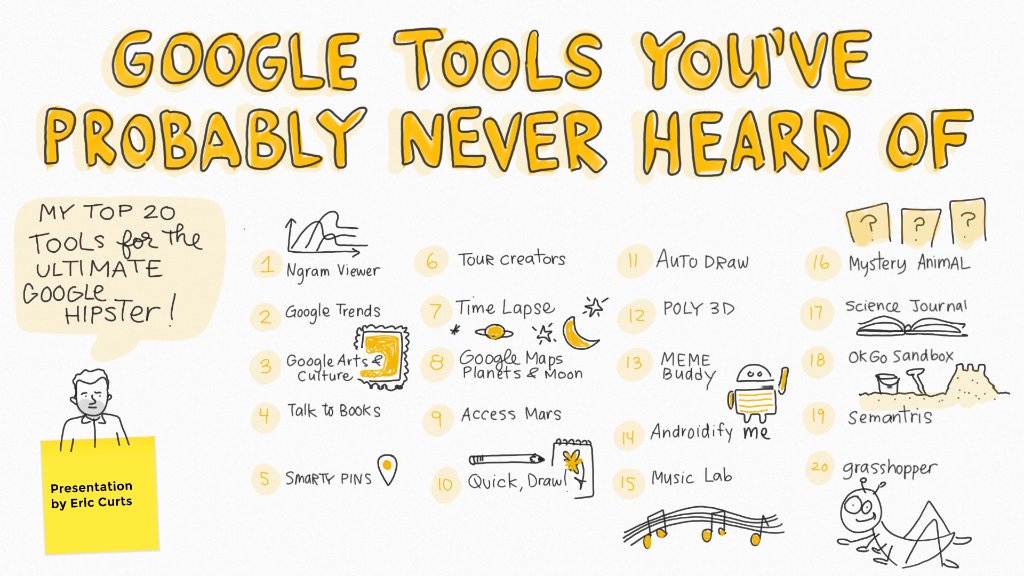
While I already knew about #’s 2, 3, and 6, the rest are new to me. Here’s a quick rundown of each and possible classroom uses:
A Google search tool that lets you search for words in all books ever published from the last 500 years with the results displaying as line graphs to show the relative change in usage over time for the different terms. Here’s how to use it:
- Type in the words and phrases you wish to search, separated by commas.
- Set the beginning and ending years for the search
- Click the search button.
- A graph appears showing the change in usage of those words over time.
This site can be used to create charts for class, check word frequency, or look at parts of speech. Here’s more ways you can use it in class.
A tool that lets you see what people are searching for. You can also:
- Explore what the world is searching for by entering a keyword or a topic in the Explore bar
- See stories curated by the News Lab at Google that provide additional insights found in the data
- See Daily Search Trends
- See Year in Search data
It’s a great site to use to help students understand and analyze data, especially in reference to finding patterns and making predictions. Check out this article for how to use Google Trends with the SAMR Model.
A website from the Google Cultural Institute dedicated to collecting and sharing art, photographs, and primary source documents from all over the world and throughout history. Items are organized by themes, artists, mediums, movements, historical events, historical people, places around the world, stories of the day, and more.
This is a virtual field trip in the making, as Google as partnered with over 50 museums across the world to show their collections and exhibits. Think London’s Natural History Museum! Students will see things that most will not be able to travel to or experience. Many of the interactive exhibits have projects that explore content more in-depth and be combined with your lessons to make a truly blended experience.
A new way to explore ideas and discover books. Make a statement or ask a question to browse passages from books using experimental AI. This could be a great tool for research. Mrs. Stubler’s classes recently did a research project on endangered species and this would have been a great tool for researching their animals.
Here’s a great intro video to get you started:
5. Smarty Pins
This is a fun game extension for Google Maps that can be used with individual students or the entire class to practice research skills and find locations on a map via clues.
- “Start a new game” to get a variety of questions or choose a category for specific topics and clues will be given.
- Students may know the answer or can do a little Google research to find the answer.
- When ready to answer, students drag and drop the marker on the map location.
- The game will tell you how far off from the correct location you are and will subtract those miles from your score.
- When you run out of miles, the game ends.
In the classroom, this could be a fun team building activity or warm-up. Together as a class, students can see how many questions they get right before they run out of miles, and track their progress and then graph it over a collective period of time. This allows for team building, critical thinking, collaboration and problem-solving, along with learning geography.
6. Tour Creator
Built on Google Maps, this tool allows you to put together a sequence of locations from anywhere on Earth, essentially creating a tour. You can add text, links, and images. You can share the final product with others who can “play the tour” to visit each location and view the content you created.
The tool is designed to let you produce professional-level VR content without a steep learning curve.
Both students and teachers can create their own VR Tours visiting places near and far and make it related to a lesson. This would have been great for Mr. Kelly’s AP US VA History class last year as they researched and discovered historically significant places and mapped their locations.
7. Time Lapse
Google has been collecting satellite imagery of the world for decades. With the Timelapse site from Google Earth Engine, you can see how the world has changed going back to 1984.
- Search for a location, or choose one of the suggested locations.
- Watch as an animation shows the changing satellite images from 1984 through the present.
This allows students to compare and contrast changes over time, see population density and more.
8. Google Maps Planets and Moon
Using imagery from NASA and the European Space Agency, Google has been able to create digital versions of many of our planets and moons, including Mercury, Venus, and Mars. You can zoom in and out, spin the planets and moons around, and explore many marked features. It literally brings the solar system right to the student’s screens and allows them to explore and experience Science like never before!
9. Access Mars
Using images taken by the Curiosity rover, Google created a 3D model of Mars allowing you to explore all of the places the rover traveled clicking on points of interest to learn more. As this tool was built using WebVR, you can experience it on a laptop, phone, or virtual reality headset. Same as above, this site will literally bring space and science right to a student’s screen.
10. Quick Draw
This artificial intelligence game gives you 20 seconds to draw a simple item on the computer while Google’s artificial intelligence is trying to guess what you are drawing. Each game lasts for six pictures. At the end, you can click on what you drew to learn more about how Google made its guesses, as well as how other people drew that item.
This would not only teach students how to be creative, but also how to be concise. 20 seconds is not a long time, so they will learn to use their time well and think about the most important parts to draw and have it be identified correctly. Here are some ideas for how to use this site with ESOL students.
11. Auto Draw
An easy to use drawing tool, however, AutoDraw includes Google’s artificial intelligence to help you draw by taking your squiggles and doodles, and offering to replace them with professional images.
The more I learn about this tool, the cooler I think it is! I can’t draw at all, but the idea of a machine taking what I draw and making it look way better than anything I could do, is fantastic, because there are those times I wish I could draw, but know it will never look like what’s in my head. This could be used in so many ways in the classroom: posters, infographics, illustrating stories or processes.
12. Poly
This is a online database of 3D designed objects in categories including animals, architecture, food, nature, people, technology, transport, and more. When you find a object you like, you can download it as a GIF or in OBJ format to import into your own projects or to edit to make your own version.
Now here’s a cool thing: Remember #6 on this list – Tour Creator? You can create your own tour, publish it to Poly, then open the link in your browser or view in Google Cardboard.
13. Meme Buddy
This tool uses Google’s artificial intelligence engine to help you create a meme just by talking to it. (There’s also an android app).
- Click the “Preview it here” button.
- Say something like “Make a meme of George Washington that says founding fathers know best.”
- Continue talking to Meme Buddy to tell it what you want to change, such as “Change to a different picture of George Washington.”
- When you are finished, you can save your image by right-clicking on the picture.
So one might ask, why should I use memes in the classroom? Well, for one thing, they are everywhere! Students interact with them daily, so in a way to connect with them, creating memes in educational ways can be both fun and academic at the same time. Eric Curts already wrote about this topic and has great ideas here.
14. Androidify
Students can use this website or Android app to create an animated Android-style avatar for themselves or for anyone.
Students could create animated avatars of historical figures and use them in presentations as tour guides.
15. Chrome Music Lab
A website and tool that makes learning music more accessible through fun, hands-on experiments. It allows students to explore music and make connections to science, math, and art. There are experiments that can be used with sound waves or use the Song Maker experiment, which lets you make and share your own songs.
16. Mystery Animal
This fun, online game from Google allows you to play 20 questions with a computer. Google randomly picks an animal, and you have to ask it “Yes” and “No” questions by speaking into your microphone. Google will then answer you back as you try to narrow down the mystery animal.
Because this is similar to “20 Questions” this game, will help build important skills such as forming good questions, communication, and critical thinking. It’s also a great way for our ESOL students to practice their English skills! You can group students by team or do this as a whole class activity.
17. Science Journal
A mobile app that runs on Android and IOS devices, as well as newer Chromebooks that run Android apps. The app uses the sensors built into your device to collect real-world data. Students can:
- Collect data with sensors for light, sounds, motion, direction, magnetism, barametric pressure, and more (depending on the device).
- Take notes to go along with the data collected.
- Export the data as a CSV file to open in Google Sheets (or other programs) for additional analysis, charts, and graphs.
Google also provides a collection of activities and lessons to use with Science Journal. Experiments can be filtered and browsed by level, equipment, duration, and features. Overall, it’s a great tool that will help students complete the Scientific process and reflect on experiments and data. This tutorial will guide through all of the features, while this video will show you how the app can be used on Chromebooks.
18. OkGo Sandbox
An online resource for educators to use music video as a starting off point for integrated guided inquiry challenges to allow students to explore various STEAM concepts. It’s all about being able to explore creativity and learning. The resources are also mapped to science standards from the Next Generation Science Standards.
Here’s one of their music videos shot in zero gravity that I could see Science teachers using as a way to introduce physical science and physics concepts.
19. Semantris
Semantris is a set of word association games powered by machine-learned, understanding technology. The game provides the player with a set of words. The players job is to type words or clues (depending on the game) that relates to one of the words in the given set as quickly as possible. Each time you enter a clue, the AI looks at all the words in play and chooses the ones it thinks are most related. Because the AI was trained on billions of examples of conversational text that span a large variety of topics, it’s able to make many types of associations.
It may not have a lot of use in the classroom, but it is an educational learning game that will make students think about the words and clues they enter.
20. Grasshopper
This is a free coding app for beginners available on both Android and IOS.
Learn the basics of JavaScript and programming in fun, quick lessons on your phone.
Here’s what each course covers:
- The Fundamentals – How code works, calling functions, variables, strings, for loops, arrays, conditionals, operators, objects, and how all these things work together.
- Animations I – Drawing shapes using the popular D3 library, defining functions, callback functions, and animations.
- Animations II – Creating more complex functions using D3 and the topics from The Fundamentals course.
There’s lots of potential here as once students (or you) know the basics, they can move on to more advanced programming techniques.
*Adapted from this blog post.


Thanks for sharing such a pleasant opinion, piece
of writing is nice, thats why i have read it completely https://stampdust9.wordpress.com/2020/05/23/top-sbobet-choices
LikeLike