
On Tuesday, I attended a 3-hour virtual training to become a Pear Deck certified coach. I am a big fan of what Pear Deck can do to make direct instruction and lectures more interactive with active learning strategies with students and was very much looking forward to this training. Originally scheduled to be an all day training with other technology coaches from around the northern Virginia area, it was instead moved to completing 4 self-paced modules and the online webinar.
I’ve previously done a 3-part series for Tech Tuesday on how teachers can use Pear Deck, which you can view in the videos below. But after attending the training, there are a few features, some new and some not, that I felt were worth re-mentioning in this time of remote learning.
STUDENT PACED MODE
When I talk about student paced mode in trainings with teachers, I suggest sandwiching it between direct instruction and whole group discussion. After direct instruction, give students a few minutes to go through 4-5 slides on their own and create a stopping point to bring everyone back together and go over the slides, stressing key point or examples. I talk more about this tool in the second video above.
As this is not a usable strategy at the moment, you can instead create a presentation that allows students to go through a lesson at their pace, while you view responses in real time. Create your presentation as normal and then present your Pear Deck and turn on student paced mode. In an email or on your LMS, send students the joinpd.com URL and copy and paste the join code so students can login.
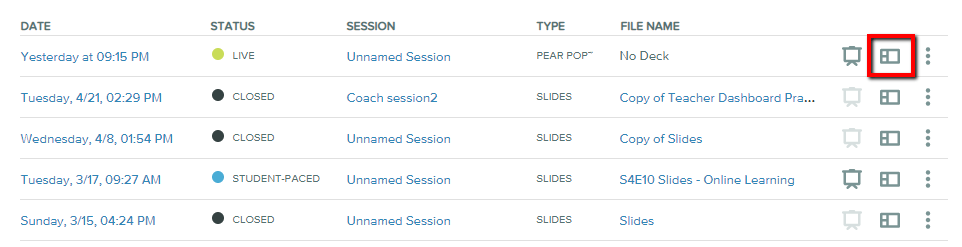
To view student responses, login to the Pear Deck website and select sessions. In the list, you’ll see 3 icons on the right side. Select the second option which opens the teacher dashboard. Turn off student paced mode when all students have completed the activity, end the session and send students the takeaway lesson, if applicable.
PRE-MADE TEMPLATES
Since I first introduced Pear Deck on this blog more than a year ago, they have seriously upped their game with more templates that teachers can use across content areas, to practice critical thinking, social emotional learning, or Digital Citizenship skills. They’ve also created a series of Daily Decks and Weekly Wonders with other companies. Newsela’s daily decks spark engagement and allow students to explore news topics by providing adaptive news articles with interactive prompts. Both teachers and students will need to create a free Newsela account, if your school doesn’t already have one. You can find more information on this daily deck at https://www.peardeck.com/newsela-daily-news.
Weekly Wonders are 10-15 minute lessons with content from curated sources that include a video or article and 2-3 discussion prompts. Each week Pear Deck releases templates for elementary, middle, and high school that are set up around the values of Pear Deck’s five Teaching Truths — Tackle Tenacity, Excavate and Expand, Anticipate Awesome, Cultivate Compassion, and Hand it Over. You can find these templates at https://www.peardeck.com/weekly-wonders.
PEAR POP
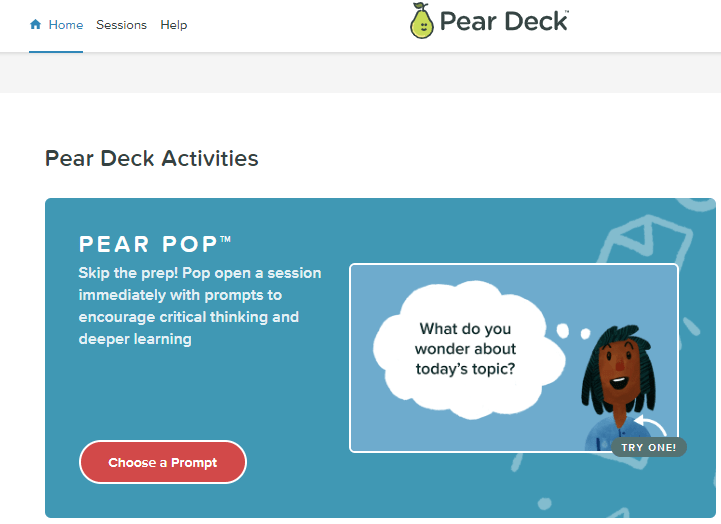
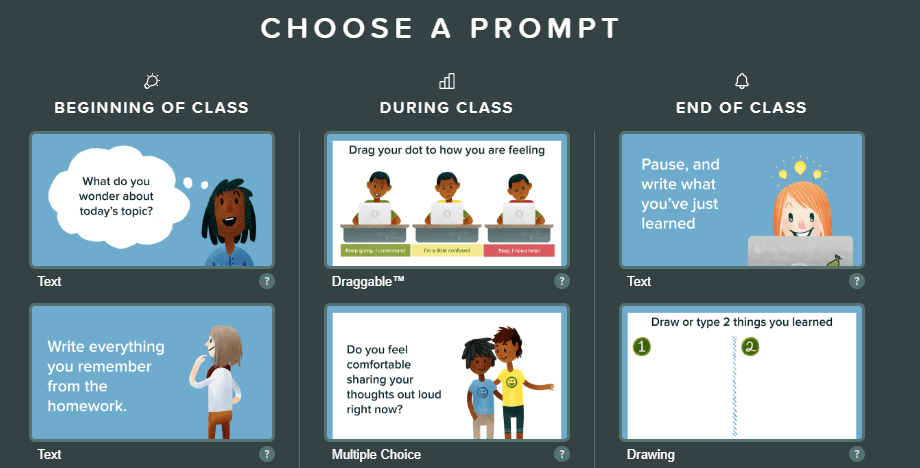
This is one of Pear Deck’s newest features and allows teachers to ask questions on the fly when spur of the moment learning happens. We’ve all had that moment when we’re working through a lesson and a great question pops up! To capture student responses, simply go to peardeck.com and right from the homepage, click on choose a prompt. Choose from one of 18 prompts and a session will automatically start!
SIGN IN ANONYMOUSLY
I had forgotten about this newer feature until it was mentioned in the training. Instead of having participants sign into an email account, they can enter anonymously and will be given an animal avatar and nickname. It is important to note the takeaways will be disabled if this feature is used. While I don’t suggest using this feature during remote learning because of stories I’ve heard of cyberbullying and inappropriate online use, I thought it was still worth mentioning.
I’ve seen teachers in first grade at our elementary campus use Pear Deck with students and this would make it much easier to have students get into a session than having them try to to sign in. It would also be great to use during a training workshop or conference session for quick responses or because you don’t know who has access to a Pear Deck account and who doesn’t.
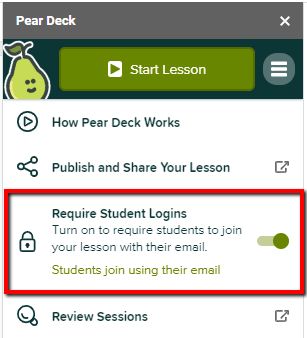
To use this, you have to change your settings. Prepare your presentation as normal. When you go to present, click the 3 lines next to “start lesson”. Under “require student logins”, you can toggle the setting on or off. Note that this setting will remain until you change it again and you will not be able to retrieve student names from any sessions using the anonymous mode.
IMMERSIVE READER
This is assistive technology tool helps students adjust settings such as reading text out loud, changing the text size and spacing between words and also includes a grammar component that highlights nouns, verbs and adjectives, and breaks down words by syllables. For English Language Learners, words or the entire text can be translated into over 60 languages; 40 of which can be read aloud. The below video highlights what the Immersive Reader can do:
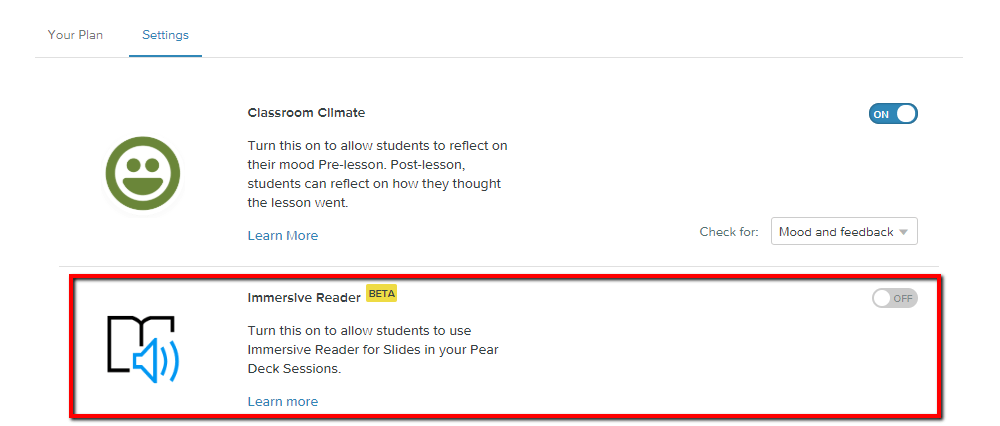
To turn this feature on, go to the Pear Deck website and click on your email account name in the upper right corner. Select “my account” from the drop down and then “settings”. Look for Immersive Reader in the list and toggle to on. This setting will remain on until you turn it off. As the video above shows, those students wishing to use this tool can select the book icon in the lower right corner.
I know this season of teaching is a hard one, but tools such as Pear Deck are working to make it that much easier for students and for us. How have you been using Pear Deck?
 Ms Priester EDU