
This week I’m focusing on professional learning for educators, specifically Twitter Chats. However, before I start, let me apologize for my unscheduled break. After my last episode in December, I went off to VSTE, our state edtech conference and returned home with the flu just in time for the holidays. Once I was on the mend, I then got bursitis in one of my feet and it’s been one thing after another and my focus unfortunately was elsewhere.
But I’m back and ready to dive in! Let’s get started on today’s topic!
DERAILING TRADITIONAL PD
One of the sessions I attended at VSTE was on derailing traditional PD. We had a team of five that went to the conference and almost all of us were strangely in this session! We got so many good ideas and have already started implementing many of them. One of those ideas has been to create a district wide Twitter Chat.
Here’s a reminder of what else is available for PD points:
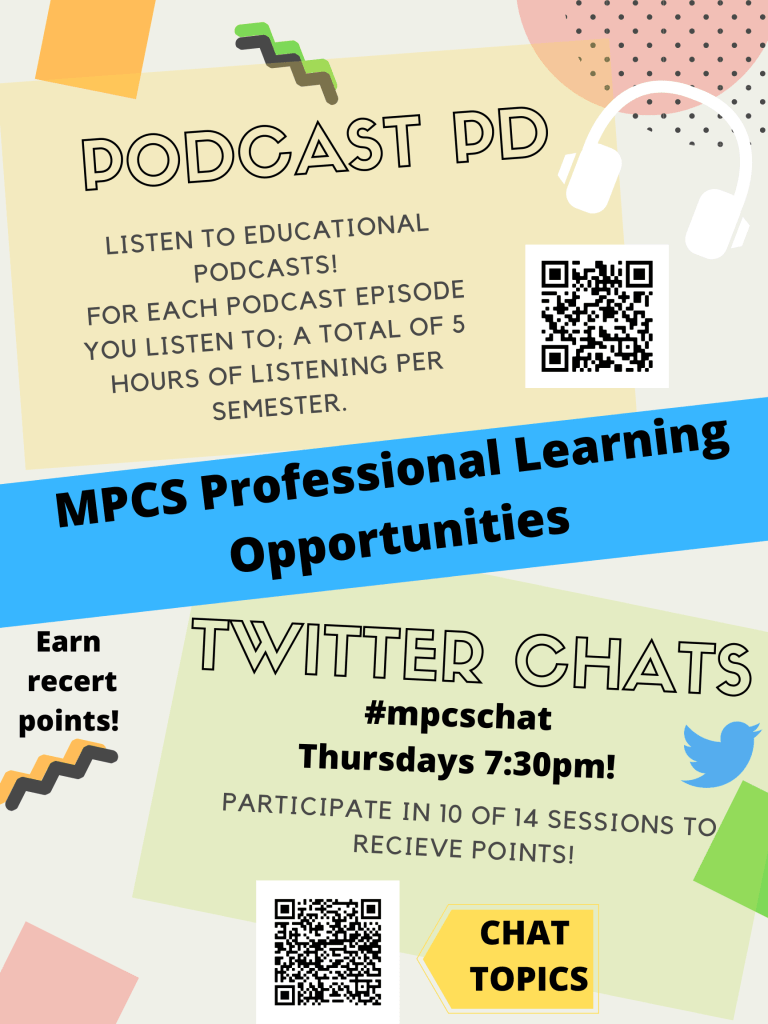
Since Twitter Chats are something still new to my district and maybe to yours, as well, I thought this would be the perfect time to talk about what Twitter Chats are and how you can participate.
Twitter Chats run weekly at the same specified date and time, although you will also find some that run twice or once a month. A typical chat will last an hour, but again this can vary and could be 30 minutes instead. There are also chats called slow chats that I’ll talk about later. Chats also have a facilitator or moderator who helps guide the discussion and share resources on whatever the chosen topic is.
During the chat, the facilitator will post a series of questions that began with Q1 for Question 1, Q2 for Question 2 and so on over the course of the chat time. Every five to ten minutes, the facilitator will post a new question. To respond, participants will answer with their own tweet starting with A1 for Answer 1, A2 for Answer 2, and so on. The conversation moves along as the facilitator and other participants respond to you and you respond to other participants.
Now, the BIG thing you need to know about Twitter Chats are hashtags! Each chat series will have a specific hashtag that you search for. This is how you follow the conversation. So take Ditch That Textbook, for instance, that has a Twitter Chat every Thursday. Their hashtag is #ditchchat. So to participate, I would sign onto Twitter at the specified time, which for me is 10pm EST, type in the hashtag ditchchat in the search bar and see the start of the conversation and follow along. Anything that I want participants to see has to include the hashtag being used, otherwise it lands in the general Twittersphere and not the chat itself.
BEST WAY TO VIEW TWITTER CHATS
Got the basics, now?
If not, hang in there, because I’m about to change gears! Using Twitter on your phone or device is actually the hard way to follow a Twitter Chat. There are 3rd party sites that make it a lot easier to follow anything on Twitter and allow you to schedule tweets ahead of time, follow hashtags or create collections of resources. The one I like the most is called TweetDeck, a free site that is actually owned by Twitter and that’s a good thing, because they’ve made it really easy to use.
Here’s a look at my TweetDeck:
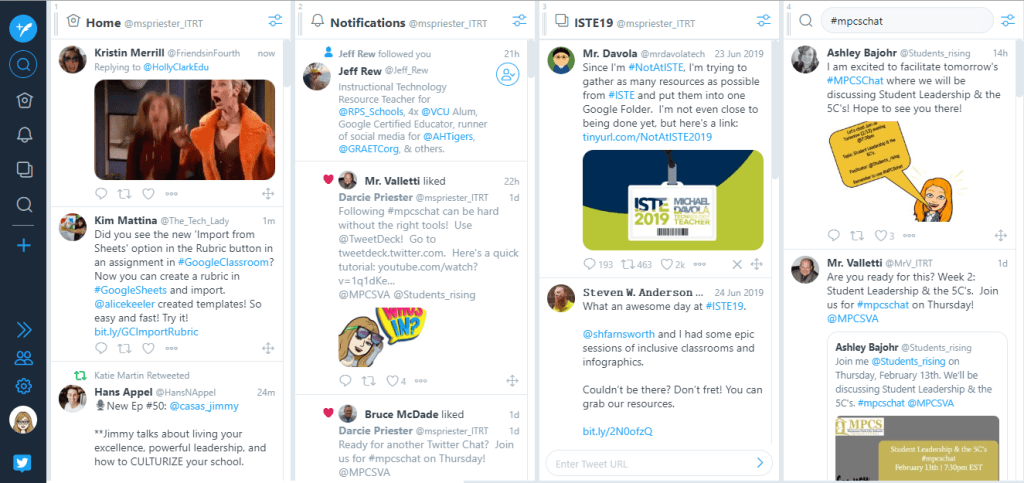
It has several columns that I’ve customized for my own use. My first column is my Twitter feed and shows the tweets of those that I follow, the next column shows my notifications, if someone has retweeted something I’ve tweeted or mentioned or me in a tweet. The next column is a collection of tweets I wanted to save from a specific hashtag. My last column, over to the right, is the one I want to focus on. I made a column that searches only for the hashtag I want, which in this case is my district’s Twitter Chat, that uses the hashtag mpcschat.
To add columns in TweetDeck, click on the “+” sign, on the left side navigation. Select “search” from the options listed, and type #mpcschat or the hashtag you want to search. Everything with that hashtag will come up. So it’s easy to view and follow along with the conversation. When I want to respond, I can click the “new tweet” icon and add my response along with the appropriate hashtag.
WHAT ELSE DO I NEED TO KNOW?
Now, I mentioned that some Twitter Chats are slow chats, that means that they take place over the course of a week, where questions are posted once a day. This is typically used for classes or book studies and one advantage to doing a Twitter chat this way is that not everyone has to be online at the same time and you can respond when you have time. However, a faster paced chat will still allow you to multitask and do other things as needed. Some Twitter chats also offer transcripts on sites like Wakelet where you can look back on all the tweets, ideas and resources that were shared and pull them into your own Wakelet collection. This is often how I look back on the Ditch That Textbook chats.
CHECK THEM OUT!
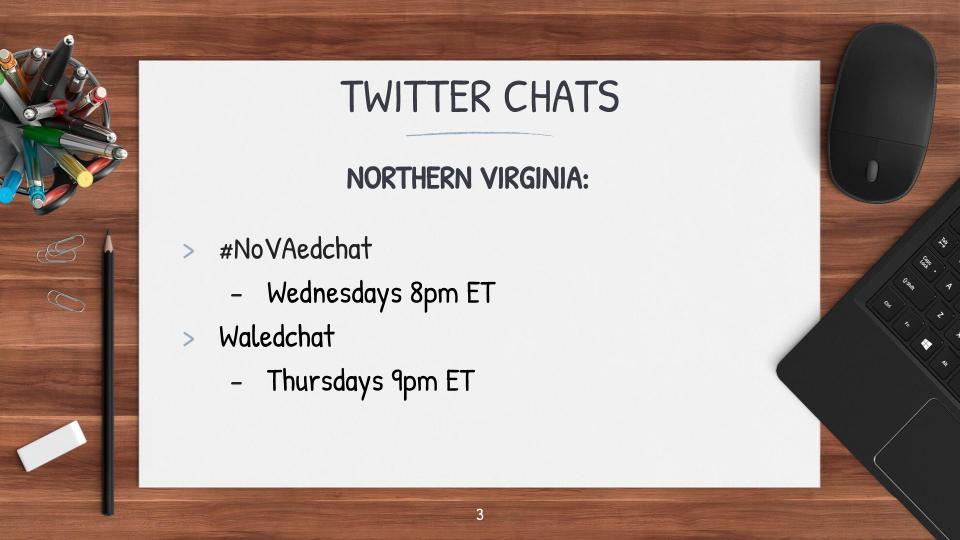
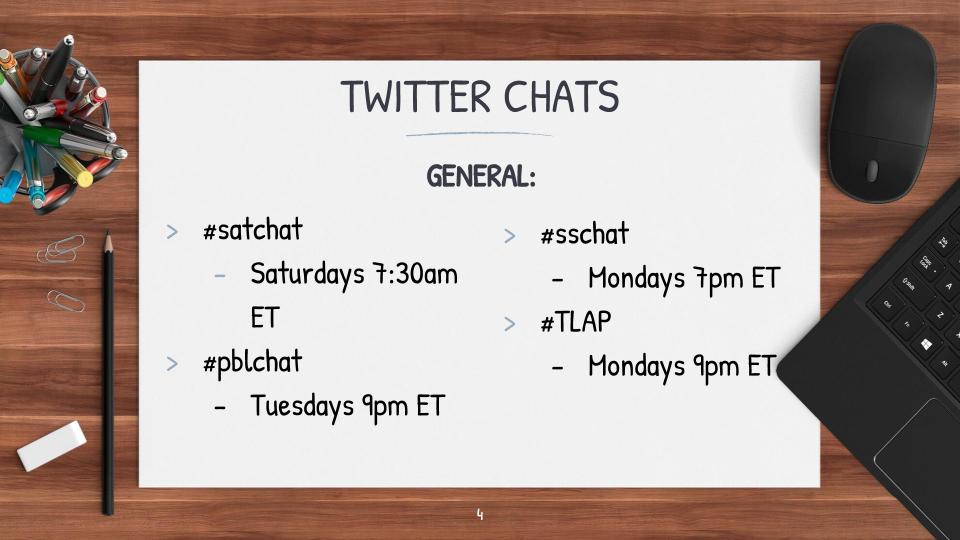
If Twitter Chats are something that are completely new to you, I highly recommend just checking them out at first. You don’t have to participate, just watch and see the progression and understand the rhythm. Some good Twitter Chats to follow in the Northern Virginia area are #NoVAedchat and #Waledchat, and other general chats are #satchat that takes place on Saturday mornings, #pblchat for those wanting to discuss project-based learning, #sschat for social studies teachers, and #TLAP for fans of David Burgess’ approach of teaching like a pirate.
You can do a quick google search on “Twitter Chats for teachers” and find all different types of chats to try.
Our Twitter Chat, known as #mpcschat, is running for 14 weeks, every Thursday at 7:30pm EST. We started two weeks ago on Feb. 6th, so there are 12 weeks left. Here’s a quick look at the remaining topics. Teachers who participate in 10 of the 14 sessions will receive 10 PD points.
TECH NEWS
So I’ve had a lot of recent questions about finding items in Google Drive and getting requests to send out links to shared docs or folders again. To help everyone get better at doing this, I created the video below to walk you through searching your Google Drive! Go check it out and share it with a colleague!
If you would like to see other video tutorials I’ve done, view my YouTube channel.
SEE YA’LL SOON!
I’m so happy to have everything back up and running for Tech Tuesday. I’ll have more to share soon, so don’t forget to hit the subscribe button to keep up to date with all of my videos. Thanks for joining me this week, see you soon!
 Ms Priester EDU