
True to the name of this blog, I am regularly learning about new tools to use in the classroom, testing out their features, and training teachers on how to use them. It’s a very basic version of beta testing, but there’s definitely trial and error involved! Today’s blog post is a perfect example of this. Today, I’m introducing you to Wakelet, a tool I first learned about through Ditch That Textbook‘s Twitter chats. I’ve learned so much as I continue to “test” out this innovative site!
Last spring, the company reached out to me via DM on Twitter:
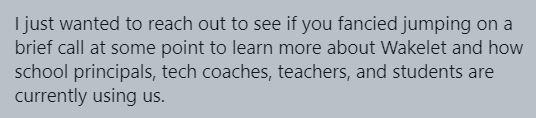
I was really grateful that they reached out to me, because learning about Wakelet on my own was one of those things that kept getting pushed down my to-do list. So we chatted via Google Hangouts (now Meet) and I was completely amazed by everything this product can do and it’s become one of my go-to tools for curating and sharing resources with teachers.
WHAT IT IS
Wakelet is a way to save, organize and share a collection of links in a meaningful and visually-engaging way. They are based in the United Kingdom and like many other tools didn’t start out to be a tool for education, but quickly got taken over by us educators!
I like the convenient way to save resources and the site’s clean interface; it reminds me a lot of Pinterest, but without needing to find an image to save. You can save websites, videos, tweets, images, PDFs, and lots more! (See below)

Just like Pinterest, you create collections (think boards) for multiple topics. I have topics ranging from Back to School Activities to Digital Citizenship and PD Ideas.
To distinguish Wakelet collections from each other, you can create a cover image and add pictures from their library or your own.
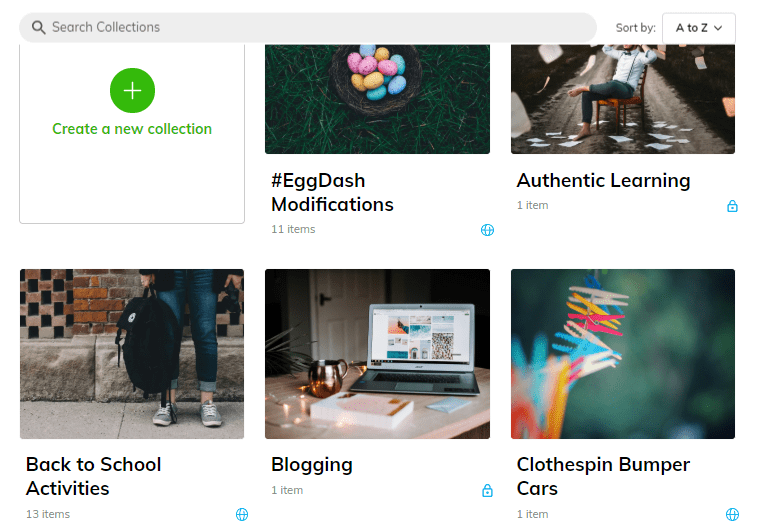
Once the collection and your cover image is chosen, click the “+” sign, select the type of resource and start adding!
Collections can be public, unlisted, or private. If public, you can choose to allow others to make a copy of your collection. You can also add contributors to individual collections and share it among a group such as your grade level, department or PLC. Collections can also be shared via a hyperlink, QR code, Google Classroom, and Microsoft Teams or embed your collection or export as a PDF. This makes it easy to curate resources and share out with students.
My school system uses Canvas and by using the embed code and the HTML editor in Canvas, I can add my collection to a page. In the example below, I created a playlist of unit and whole course movie trailers for a professional development session that educators could watch and be inspired by.

CONTENT DELIVERY
Wakelet can also serve as a way to deliver your content as this example or this other example shows; giving students directions, links to Google Slide Decks, guiding questions, and allowing for application. It looks somewhat similar to a HyperDoc, although I like the HyperDoc format a bit better in that it gives students space to take notes and document their learning in one place.
Then there’s the tutorial route. I recently discovered #Jenallee, two Instructional Technologists named Jeni and Sallee, who created this awesome tutorial using only Wakelet! I love this idea and how out of the box it is! It would be great to use for step-by-step directions or as lessons for when you have a substitute. Just direct students to the appropriate link and viola! They have their lesson for the day shown exactly as you meant with less chance for misinterpretation.
Playlists, like the one in the picture above, can be made up of multiple resources to differentiate and personalize instruction. (Not sure what a playlist is? This is a great resource.)
CHROME EXTENSION
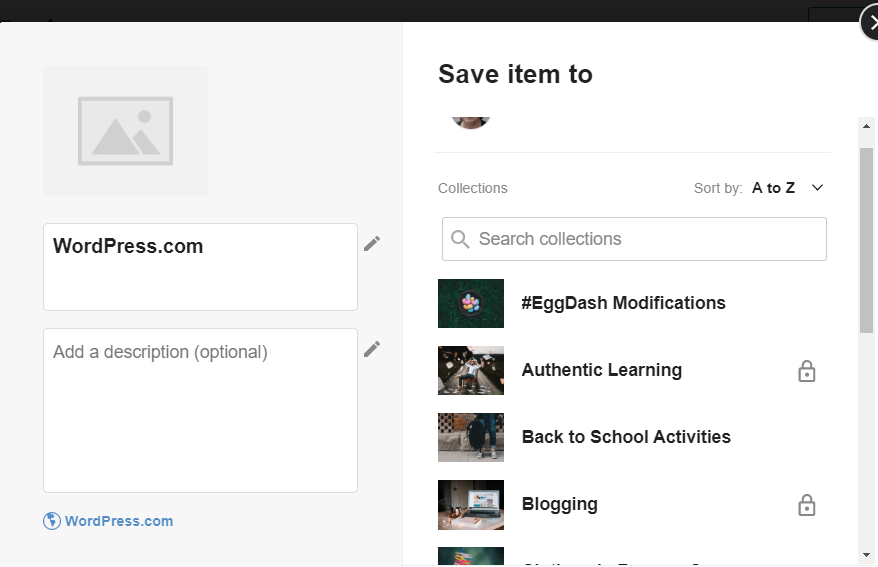
I curate a lot of resources and Wakelet’s Chrome extension saves me a bunch of time. When I find a resource I want to save, I click on the blue “W” icon on my extensions menu and the window below appears. The title of the resource automatically drops in and I can add a description and then select the collection I want to save it in or make a new collection.
JAW DROPPING FEATURES
There are a couple of additional features that absolutely made my jaw drop; they are so clever and not in a million years would I have thought these were possible.
Many of the resources I find nowadays come from Twitter. I can search hashtags and find lessons, blog posts, and advice from educators on any subject manner. I typically use the bookmark feature right in Twitter to be able to refer back to items I want to share quickly with colleagues outside of Twitter or use for a Tech Tuesday episode or blog post. But for items I want to keep long term, I use the Wakelet icon right in Twitter. It’s located just to the right of the icon for bookmarking. When you add the Chrome extension, an icon also gets added to the bottom of tweets in your feed so you can save items right there!
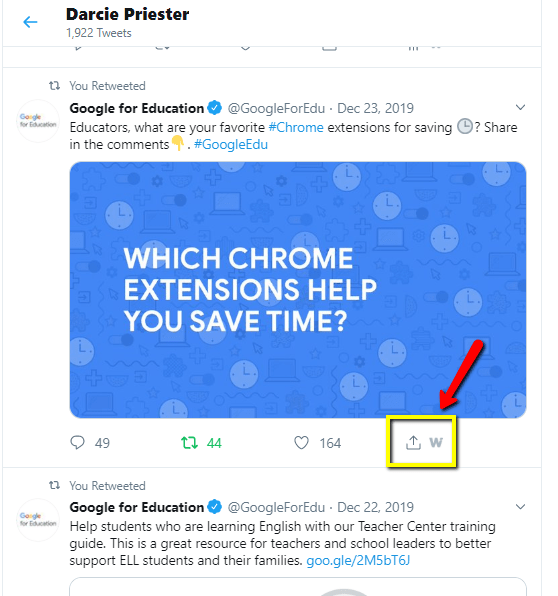
I love that this feature is available because it saves me time and the hassle of trying to remember where I saved resources. But better yet, when I go back to look at tweets I’ve saved, I can see the thread and all the comments that go with it too.
Speaking of saving tweets, Wakelet also lets you save multiple tweets at once! Search for a hashtag and select the individual tweets or every tweet associated with that hashtag, such as the comments from a Twitter chat! That’s how I first learned about the site, by reading the Ditch That Textbook chat transcripts the next day!
Want to learn more? Watch Twitter for webinars offered by Wakelet and then go jump in and ride the #WakeletWave!
 Ms Priester EDU
1 thought on “Getting to Know Wakelet”