
Welcome back to a new episode of Tech Tuesday!
Today I’m focusing on Google Forms. It’s a very versatile tool especially when you think a bit outside the box. This is something that has been on my brain lately as I prepare to apply to be a Google Certified Trainer. I’m using Google Forms as the tool I am going to use for my professional development session. I have to design a PD around a Google tool, so I decided to focus on the different ways Google Forms can be used in any content area and thought it would also make a good topic for today’s episode, as well.
If you’re just starting out with forms, it’s great for surveys, warm-ups and exit tickets. Or use it as a quick check-in with students during the middle of a lesson to make sure they understand the material. The forms homepage at forms.google.com has already created templates on most of these ideas. You can edit as needed and have something put together quickly.
Another great way to use forms is for a flipped lesson. You can insert YouTube videos and images allowing for students to quickly apply what they’ve learned or allow for them to analyze and summarize.

On the responses tab, you can see how students responded via the summary view or create a spreadsheet and be able to sort through responses as needed.

However, I feel Google Forms is at its strongest with these next couple of ideas:
When the quiz feature finally came around, it blew me away. Here was an easy way to quiz students and allow them to see what they got right or wrong and give them feedback. That’s what I like the most about forms in quiz mode, the ability to provide feedback and include links to have students review material for questions they need more help with.

Some of the activities I will feature in my PD session are Choose your own Adventure stories and The Amazing Race, Google Style. Both of these activities involve something called response validation. This is a special feature on a question that allows for a specific answer before moving on to the next question. You’ll find this in the lower right corner of a question by clicking on the 3 vertical dots and selecting response validation. This will only work on question types that include short answer, paragraph or checkboxes (not to be confused with checkbox grid).

Here’s a quick look at how you can set this up with each of these question types.
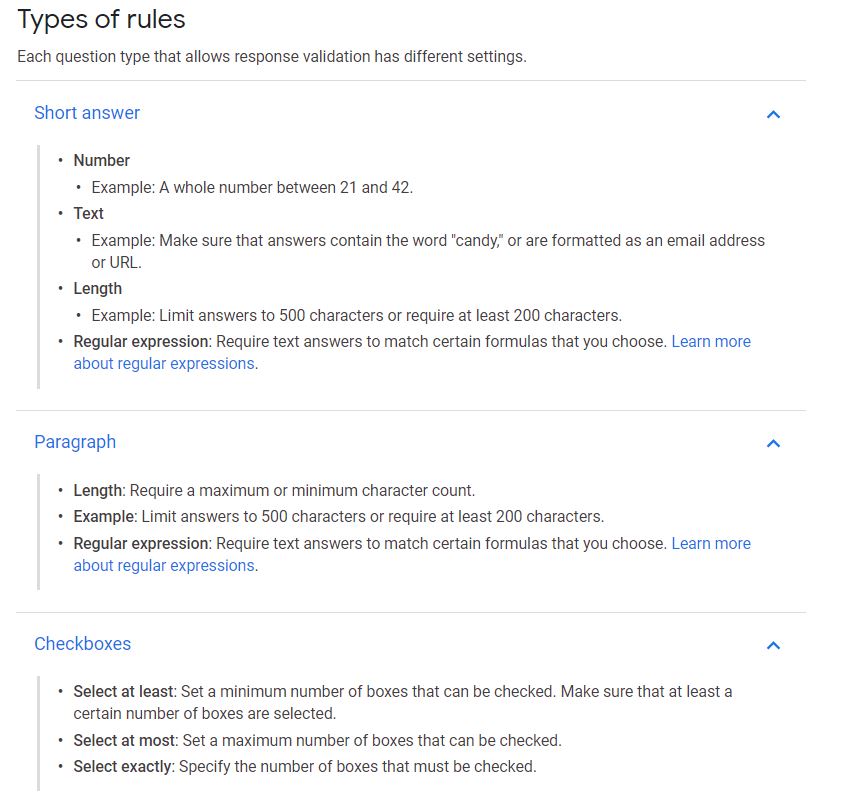
I hope this gives you a good overview of Google Forms and some inspiration. If you would like to learn more, join me on Wednesday, May 29 at 2:30pm in the MPHS library for Digging into Google Forms.
Here is the link to the training agenda and the choice of activities you can learn about during the session: http://bit.ly/2w76AeK
If you are able to attend, please fill out this survey BEFORE the training: https://forms.gle/ADQCrNzrENDMiNqS8
And if you would like to talk more about forms, don’t forget I’m around until the end of June, so feel free to stop by and chat about ideas for next year.
I wanted to talk about this Google certification process for a minute. This has been one of the best trainings I’ve received since graduating with my master’s degree. I think it’s been around for about two years now, but Google created their own certification program for teachers and tech coaches/specialists. There are two levels for teachers, plus a level for trainers, and another for what they call Innovators. These are teachers who are movers and shakers and want to help with education reform.
You can go through Google’s free training, which will teach you everything you want to know about Google tools. You can stop there or take one of the certification exams to be recognized by Google. There is a small fee associated with each exam.
You can also use Google’s Applied Digital Skills site that has curated lessons with skills for students but also prepares you for the scenario questions in the exam, these are questions which show you have an understanding of how to apply the tools in different ways.
I highly recommend taking a look at the training materials and consider the certification options.
A few reminders before we close out this episode:
If you watch the last 5 episodes from this season (Episodes 13-17) AND come up with a lesson plan from ONE of these episodes you’ll get 5 PD points. For today’s episode, you don’t have to create a lesson plan surrounding only the ideas I’ve shared. If one of these ideas inspires you to create your own, that’s great too!
Here’s what you need to do to make sure you get your points:
- Submit the form in the description area below telling me what you learned in each episode and add the file with your lesson plan.
- Register for the PD Session called “Tech Tuesday PD series” in Teachpoint.
You MUST do BOTH steps in order to get your points. The form will be available until June 14, 2019.
Need to catch up on the previous episodes? Check out my YouTube Channel which has all the previous seasons of Tech Tuesday.
That’s all for this episode. I’ll be back next week with my last episode of the season! Thanks for watching!
 Ms Priester EDU