
Welcome back to another episode of Tech Tuesday! This week I’m sharing how you can use Adobe Spark with your classes. I’ve previously done some PD on this, but I have two reasons I want to share it again now. One, as most of our classes are new again with the start of a new semester, I want to give you ideas for how you can incorporate this tool. Secondly, Adobe Spark has made their premium features available for FREE to K-12 schools and Higher Ed. All staff and students have their own accounts now, but there is a special way to sign in. So I want to walk you through this too. Let’s get started!
WHAT IS SPARK?
Before I show you how to sign in, what is Spark? If you haven’t heard of this tool before, Adobe Spark is 3 tools in 1. Tool number 1 is Post which is for graphics and can be used to create quotes, sayings, images, digital posters and more. There’s also Video, which has a very basic video editor and allows students to add video, images, text, music and voiceovers. While, it doesn’t have the amount of choices or editing features that WeVideo has, this is more for something quick and easy video wise, such as students recording a reflection or answering a question. The last tool is Page, which is a hybrid of a webpage and digital poster. Students can create scrapbooks, brochures, simple web pages and more. Depending on the theme chosen, elements have different effects as they scroll down the page.
SIGNING INTO YOUR ADOBE ACCOUNT
So how do you login? Both your students and you will go to http://spark.adobe.com. Once the site has loaded, click on the “login” button in the upper right corner. You will see several options to login, but you want to choose the one option on the right side labeled “teacher or student?” and login with your school account. This will be your MPCS Google account. So for teachers the login will be your mpcschools.net account and for students their mpcs4learning.com accounts. Click the button and then login. In some cases, I have found that you don’t even have to put your password in as it will start to recognize your Google account. Then click the button, “sign in with an Enterprise ID”. If you ever get this screen, when you login, choose the second option, “Enterprise ID”. Underneath reads “company or school account”.
When I get logged in, I am automatically sent to my dashboard that shows previous projects I have created. However, when you login for the first time, you will get a screen asking you to choose a project to get started. Then on your next login, it will take you to the dashboard.
Now here’s how you know for sure that you are logged into the correct account. We want to make sure you have access to the premium features and don’t need to upgrade. The quickest way to do this is to create a Post, so scroll all the way down to the bottom of your current screen and click on “create a graphic”. Click on “start from scratch”, and skip the next couple of steps, just click ok or skip until you get to the edit screen. Click on the “add” button and then choose “logo”. If you see the same as I do, you’re all set! If you click on logo and it asks you or students to upgrade, you’re signed into the wrong account and have set up a personal account. Logout and make sure you have selected the Enterprise ID option and sign in again.
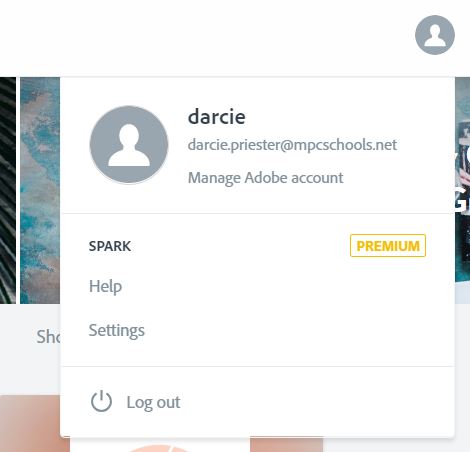
(Psst…After I was done filming this episode I discovered a simpler way to see if you have the premium features. Just click your profile icon in the upper right corner and you’ll see premium listed).
HOW TO INTEGRATE SPARK
Since this is the beginning of the semester, any of these tools can be used as a way to get to know your new students and build relationships with them. Students could create introductory videos about themselves sharing their favorite things, what they hope to learn in your class, and skills they have found helpful to use in other classes. Or they could create a Spark Page to describe their home country and what they like about living in the U.S. They can also use Spark Post to create a simple infographic with facts about themselves.
But Adobe Spark can be used in so many other ways beyond introduction projects. Since it’s now February, it’s time for Black History Month! You can have students research a famous African American and create a biographical video about their life. They could even create a Spark Page as a digital poster inserting images, YouTube videos and links to articles or primary sources about their famous person or use Spark Post to create a graphic with a quote. Here’s one I created in under five minutes with a quote from singer Marian Anderson. To take things a step further, I could put all three tools into one and use Spark Video to create a video about Marian Anderson’s life and then that and my graphic with the quote I created could be inserted into a Spark Page, making a fully well-rounded project. This could be broken up as tasks for group members too, with one student creating the video, another a graphic and a third student creating the page and combining them into one.
Here are some more ideas listed by tool:

Here’s a couple more great ideas from Twitter! Danielle Wilson Baldwin showed her students researching scientists & inventors using their library databases, then creating a Spark Page to present their research. While Micah Echols had her students research the sun, moon, and earth and then write a script to create an informative video. Thank you ladies for letting me use these as examples! Students could also design their own book or report covers using Spark Post. Here’s a beautiful example of what one teacher created and shared out on Twitter. I also can’t leave out one of my favorite projects! Last year, I worked with Mrs. Hammad’s Tourism classes to create beautiful virtual tours in Adobe Page. Here are some of her student’s work. These are all great ideas and I hope one of them inspired you to give Adobe Spark a try. Please contact me if you would like assistance in designing a lesson with these tools.
Also, if you’re interested in learning more about how to use Adobe Spark, the Adobe Education Exchange offers free online classes and PD points. There’s upcoming classes on Making Humanities Creative with Adobe Spark and Making Literacy Creative, plus three self-paced courses “Learn Adobe Spark”, “Up and Running with Adobe Spark Post”, and “Design a Stunning Web Page in Minutes”. I also found a great resource from the South Brunswick School District in NJ with guides to using Adobe Spark. I really like how they’ve set up their site and made easy to use resources for teachers. Links to these classes and resources will be down below and in the episode transcripts.
TECH NEWS
I’ve got a really important tip to share with you about your accounts in Google Chrome. Kasey Bell from Shake Up Learning has created a wonderful video showing you how to switch between your professional and personal Google accounts, called “You’re Doing it Wrong! How to Manage/Toggle Between Multiple Google Accounts”. Trust me, when I say this is worth it to watch her video, click on the link right here (in the left corner). I thought I knew the best way to switch between my multiple accounts by adding an account when I clicked on my icon and I know many of you do it the same way I did, but Kasey’s way IS THE RIGHT WAY! I started using it about two weeks ago and it is so much easier. No more will Google tell you that you are logged into the wrong account and don’t have access to a file. So please go watch this video! If you need help with setting this up, please let me know! I will also have a link to step by step directions that Kasey gives you in her video down below.
Also, Google is making some design updates! This time, Google Docs, Sheets, Slides and Sites will be getting a facelift to make them look more consistent with other Google products. This follows the recent overhaul that was done to Gmail and Calendar. Rest assured, this will not be changing how any of these products function, but starting sometime after February 11th, you’ll notice these products looking a little different. Here’s a quick before and after shot for you. You’ll notice the share button will no longer be blue, but yellow and the whole design is little more crisp and clean. You will notice other subtle changes to buttons, fonts, and menus during this update. If you’re interested in learning more about updates to G Suite, you can follow the G Suite Update Blog at https://gsuiteupdates.googleblog.com.
Finally, Pear Deck has created some pretty cool math templates! They realized that one of the things most searched for on their site was math and they’ve helped us out! The templates are editable, so you can add your own images, change the lengths of lines, like on one example you can shorten the diameter line, so it becomes a radius instead, and also change the text and numbers. There’s also a Desmos calculator you can embed for graphing!
At this time, the templates appear in Google Slideshow, not the Pear Deck add-on. I’m hoping this will change, but I also created a video for how you import the slides you want into another presentation. I’ll put the link to the templates that also includes a video demonstrating how each works plus the quick video I created in the description area below.
That’s all for this week’s Tech Tuesday! Thanks for watching and I’ll see you in two weeks!
LINKS TO RESOURCES
You’re Doing it Wrong! How to Manage/Toggle Between Multiple Google Accounts – https://www.youtube.com/watch?v=qJi0g-Lq8Xo
Steps to Set Up Multiple Google Accounts – https://docs.google.com/document/d/17Cewemi3zptGPD1DYXC5jr16fBnI-ItSbGxAQBsDKJo/edit?usp=sharing
Adobe Spark Video Tutorial – https://www.youtube.com/watch?v=rSR_32wAyvQ
Adobe Spark How-To Site – https://sbtechpd.weebly.com/adobe-spark.html
Adobe Spark How to Make a Mood Board – https://spark.adobe.com/make/mood-board-maker
Upcoming Adobe Spark Classes:
Where you can find adobe classes: Adobe Education Exchange
https://edex.adobe.com/en/pd/course/making-humanities-creative
https://edex.adobe.com/en/pd/course/making-literacy-creative
https://edex.adobe.com/en/professional-development/workshop/adobespark
https://edex.adobe.com/en/professional-development/workshop/spark-post
https://edex.adobe.com/en/professional-development/workshop/spark-page
Pear Deck Math Templates –https://www.peardeck.com/pear-deck-blog/2019/1/30/new-math-templates-with-stacey-roshan
Video to Import Slides- https://drive.google.com/file/d/1AFXQWXaguZT85gsaydf5VoCGyOC-Klty/view?usp=sharing
 Ms Priester EDU